

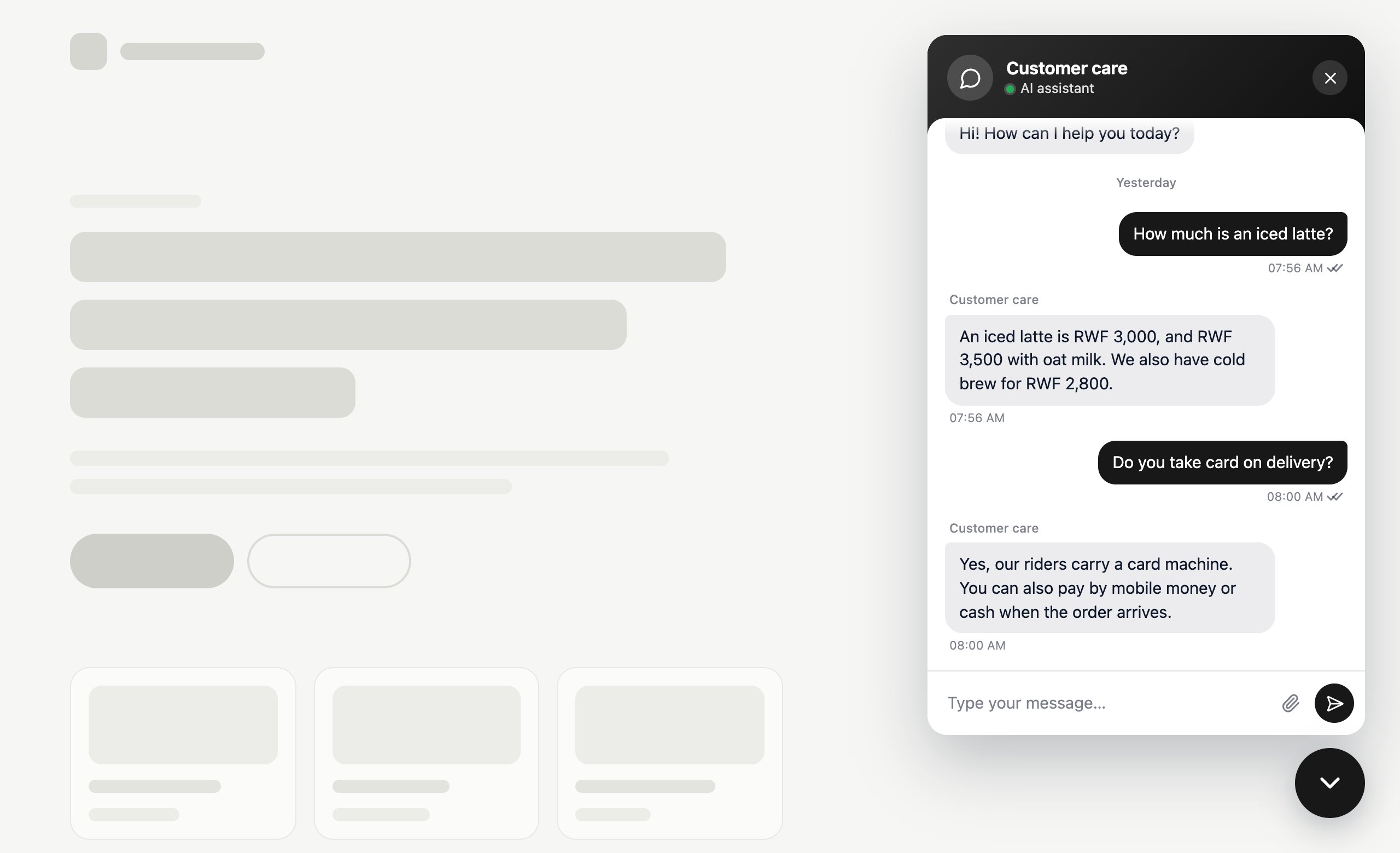
Add it
2
Make it yours
Choose its colours, where it sits on the page, its greeting and suggested
questions. The preview shows it the way customers will see it.
3
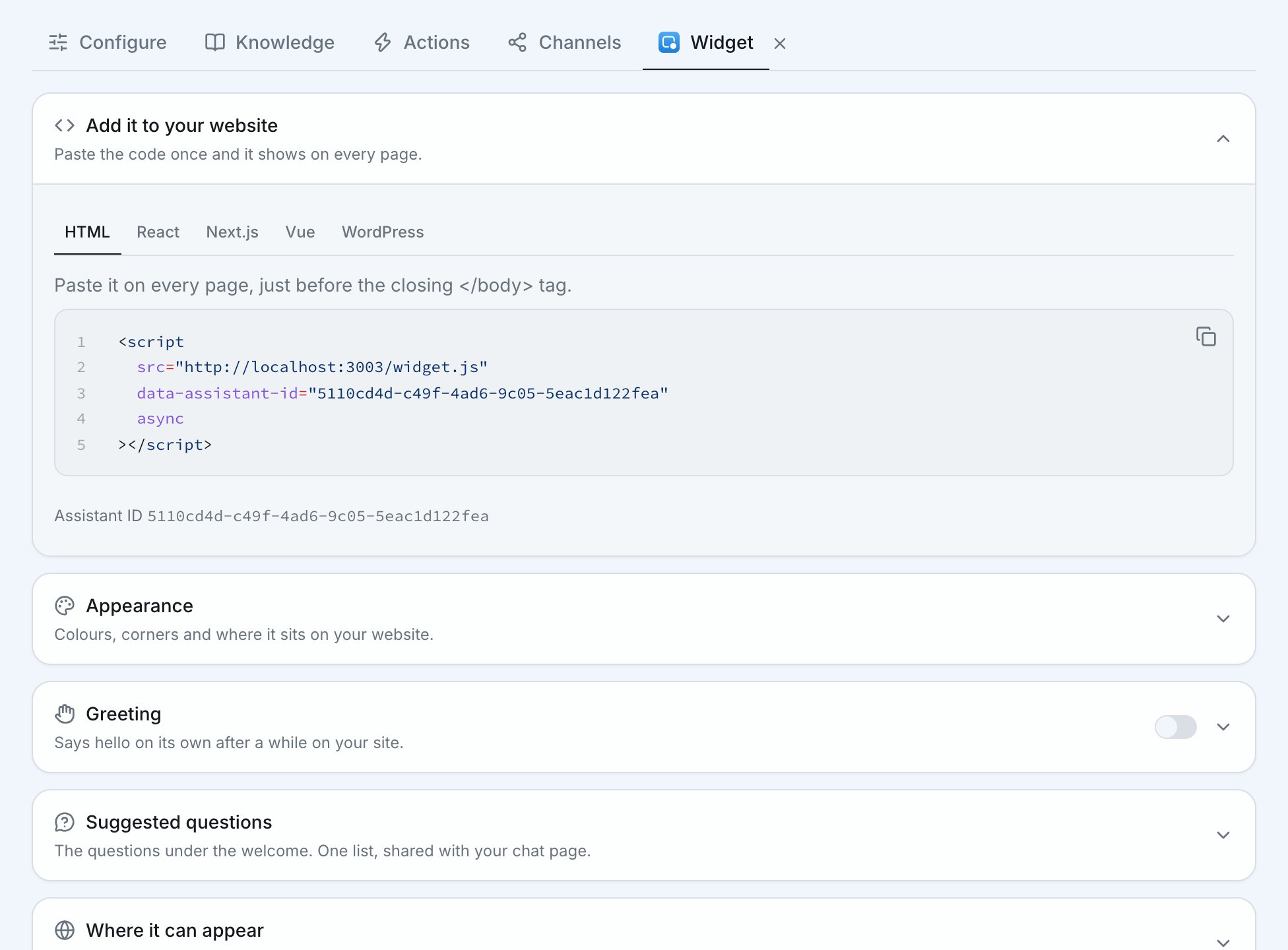
Copy the line of code
Paste it into your website. Most website builders have a place for custom
code: paste it there. If someone else looks after your website, send the
code to them. See Install it on your
platform.
Install it on your platform
Under Add it to your website, pick how your website is built and copy the code. You paste it once, and the chat shows on every page. On WordPress, paste it into your theme’s footer, or use a plugin that adds code to the footer of every page. For anything else, a developer usually does this part.For your developer
For your developer
Pick the tab for how the site is built, then put the code here:
Greeting visitors
The chat can say hello on its own, so visitors know they can ask. Turn on Say hello on its own under Greeting.
The greeting pops up beside the chat button after the time you choose. Time on all your pages adds up. Tapping the greeting opens the chat with the same words.
- Each visitor sees it once a day at most. Once they open the chat or close the greeting, they don’t see it again on that visit.
- Someone already chatting with you isn’t greeted. Nobody is greeted while your assistant is paused.
- Web browsers play sound only after a visitor has clicked or tapped somewhere on your page. Before that, the greeting appears without sound.
Where your chat can appear
Anyone who copies your code could put your assistant on their own website and use your replies. To stop this, list the websites allowed to show it under Where it can appear, up to 20. It then answers only on those.- Each website you list also covers its other parts, like
www.yourbusiness.comorshop.yourbusiness.comforyourbusiness.com. - Leave the list empty to allow any website.
- Your chat page always works, even with no website.
This list isn’t what your assistant learns from. That’s your website under
Knowledge.